Prompter Hawk Documentation
Prompter Hawk is mission control for AI coding agents. Orchestrate multiple AI agents (Claude, OpenAI, Gemini) working in parallel on your codebase with automated task management, context sharing, and real-time monitoring.
Parallel Execution
Run 3-10+ specialized AI agents simultaneously. Work on frontend, backend, and tests at the same time.
Multi-Provider
Mix Claude, OpenAI, and Gemini in a single mission. Use the best model for each task.
Smart Context
Configure context once at mission, agent, or task level. It travels automatically between sessions.
One-Click Retry
Tasks fail? Retry with full context preserved. No copy-pasting or hunting down prompts.
Installation
Choose your platform to get started with Prompter Hawk:
Windows Installation
Coming soon: Native Windows .exe installer is in development. For now, use WSL2 with the Linux binary or the source installation method.
Option 1: WSL2 + Linux Binary (Recommended)
For best performance on Windows, use WSL2 with the Linux binary:
-
Enable WSL2
Open PowerShell as Administrator and run:wsl --installRestart your computer after installation.
-
Install Prompter Hawk in WSL
Open your WSL terminal (Ubuntu) and follow the Linux installation instructions. -
Access from Windows
The web dashboard athttp://localhost:8000is accessible from your Windows browser.
Option 2: Install from Source (Development)
# Requires Python 3.10+ and pip installed

# Navigate to your project and start
cd C:\path\to\your\project
prompter-hawk init
prompter-hawk
Requirements: Windows 10 or later, Python 3.10+, 4GB RAM minimum (8GB recommended). Source installation requires the Prompter Hawk Python package - see the Downloads page.
macOS Installation
Option 1: DMG Package (Recommended)
Download and install the pre-built application bundle for macOS:
# Download from the Downloads page or directly:
# https://github.com/nlowell11/prompter-hawk-downloads/releases/download/v0.2.5/PrompterHawk.dmg

# After downloading:
# 1. Open the .dmg file
# 2. Drag Prompter Hawk to your Applications folder
# 3. Launch from Applications or Spotlight
Self-contained: The DMG package includes everything you need - no additional installation required! It's approximately 87 MB.
Option 2: Install from Source (Development)
# Requires Python 3.10+ and pip installed

# Navigate to your project and start
cd /path/to/your/project
prompter-hawk init
prompter-hawk
Note: Source installation requires the Prompter Hawk Python package. See the Downloads page for the latest releases.
Configure Authentication
After installation, configure your AI backend:
# Option 1: Claude Max Plan (recommended)
pip install claude-code-sdk
claude login

# Option 2: API keys via environment variables
export ANTHROPIC_API_KEY="your-claude-key"
export OPENAI_API_KEY="your-openai-key"

# Or configure via the web UI Settings panel
Linux Installation
Option 1: DEB Package (Recommended)
Download and install the pre-built binary for Ubuntu/Debian-based systems:
# Download the latest .deb package
wget https://github.com/nlowell11/prompter-hawk-downloads/releases/download/v2.1.3-linux/prompter-hawk_2.1.3_amd64.deb

# Install it
sudo dpkg -i prompter-hawk_2.1.3_amd64.deb

# Run Prompter Hawk
PrompterHawk
Self-contained: The .deb package includes everything - no Python installation required! It's approximately 124 MB.
Option 2: Install from Source (Development)
# Requires Python 3.10+ and pip installed

# Set up API keys (see API Key Setup section)
export ANTHROPIC_API_KEY="your-key-here"

# Run Prompter Hawk
prompter-hawk
Note: Source installation requires the Prompter Hawk Python package. See the Downloads page for the latest releases.
WSL Users (Windows Subsystem for Linux)
The Linux binary works great in WSL2! If your browser doesn't open automatically, navigate to http://localhost:8000 in your Windows browser.
Requirements: Ubuntu 20.04+ or Debian 11+ (tested on Ubuntu 22.04), x86_64 architecture. For source install: Python 3.10+, pip, 4GB RAM minimum.
Your First Mission
A "mission" in Prompter Hawk is a project with agents, tasks, and shared context. Here's how to create your first one:
-
Navigate to your project directory
cd /path/to/your/project -
Initialize a new mission
prompter-hawk initThis creates a
.prompter-hawk/directory with mission configuration includingmission.json,task_state.json, and agent memory folders. -
Start Prompter Hawk
prompter-hawkThe web dashboard opens at
http://localhost:8000(or next available port 8001-8100 if busy). -
Add agents and tasks
Use the dashboard to add agents and create tasks. You can also create tasks from the command line:prompter-hawk task @my-agent "implement login feature" -d "Create the auth system"Agents automatically pick up pending tasks when started.
Quick tip: Run prompter-hawk help to see all available commands and options.
Dashboard Overview
The Prompter Hawk dashboard is your mission control center. It provides real-time visibility into all agents, tasks, and progress.

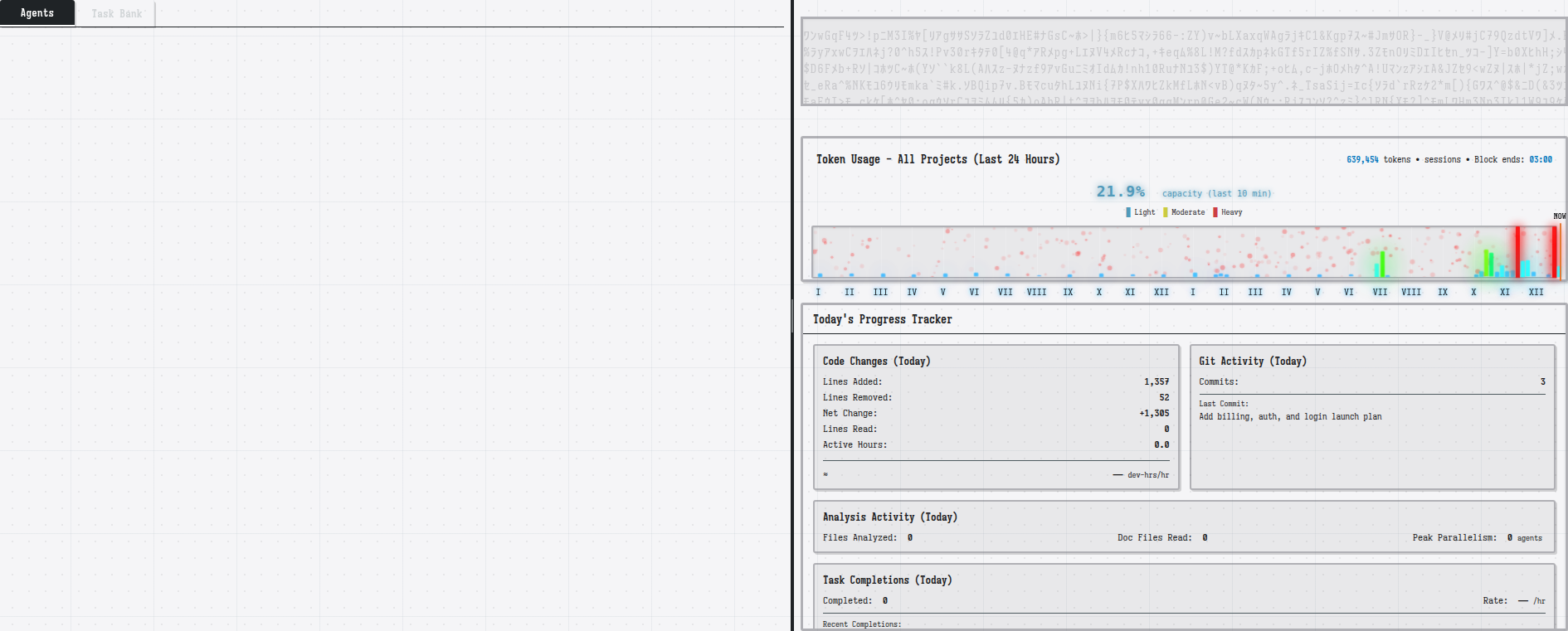
Key Dashboard Areas
| Area | Purpose |
|---|---|
| Agents Panel | Left sidebar showing all agents, their status (idle/busy), and controls to start/stop them |
| Task Bank | Central area for viewing and managing all tasks - pending, in progress, completed, and blocked |
| Token Usage | Real-time chart showing token consumption over the last 24 hours with capacity indicators |
| Progress Tracker | Today's metrics including lines of code, commits, task completions, and analysis activity |
| Header Controls | Global actions - Start All, Stop All, Add Agent, Settings, Theme, and Shutdown |
Managing Agents
Agents are AI-powered workers that execute tasks. Each agent can use a different AI provider and has its own memory and context.
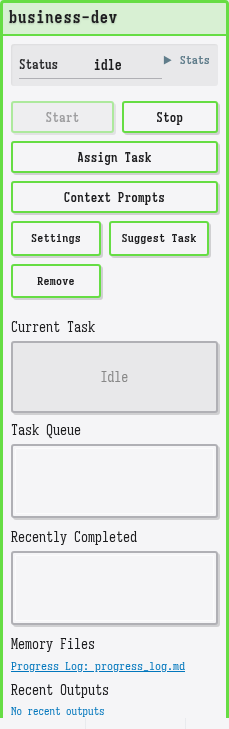
Agent Status States
- Idle - Agent is ready but not currently working on a task
- Busy - Agent is actively executing a task
- Monitoring - Agent is waiting for human feedback
- Stopped - Agent service is not running
Agent Controls
| Action | Description |
|---|---|
| Start | Begin the agent service. Agent will automatically pick up pending tasks. |
| Stop | Gracefully stop the agent after current task completes. |
| Assign Task | Manually assign a specific task to this agent. |
| Context Prompts | View and edit the agent's system prompt and persona. |
| Settings | Configure agent-specific settings like backend provider. |
| Suggest Task | Ask the agent to suggest a new task based on mission context. |
Agent Memory Files
Each agent maintains persistent memory in its progress_log.md file. This includes:
- Task completion history
- Learnings from successes and failures
- Blockers and how they were resolved
- Cross-session context that persists between restarts
Task Management
Tasks are units of work assigned to agents. Prompter Hawk provides a sophisticated task management system with dependencies, priorities, and automatic retry.
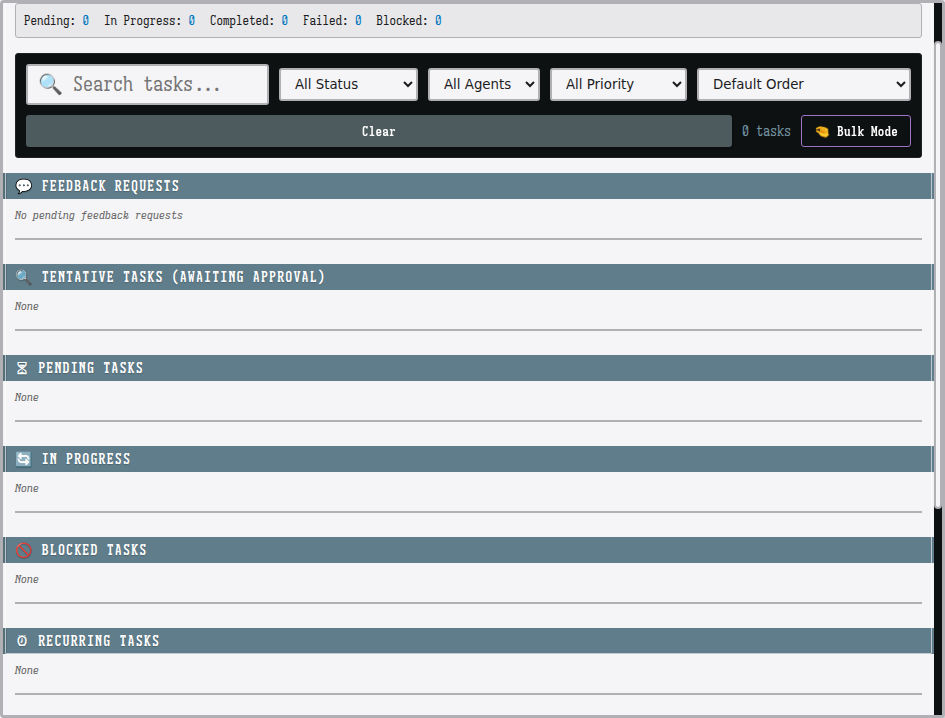
Task Categories
| Category | Description |
|---|---|
| Feedback Requests | Tasks waiting for human testing and validation |
| Tentative Tasks | AI-suggested tasks awaiting human approval |
| Pending | Approved tasks ready to be picked up by agents |
| In Progress | Tasks currently being executed by agents |
| Blocked | Tasks waiting for prerequisites to complete |
| Recurring | Tasks that repeat on a schedule |
Creating Tasks
Tasks can be created through:
- Dashboard UI - Click "Add Task" in the Task Bank
- CLI - Use
prompter-hawk task @agent "name" -d "description"(see CLI Commands) - Team Captain - Automatically creates tentative tasks when enabled
- Agent suggestions - Agents can propose tasks during execution via MCP tools
Task Properties
- Name - Short, descriptive title
- Description - Detailed instructions for the agent
- Priority - Critical, High, Medium, Low
- Assigned To - Specific agent or "any" for auto-assignment
- Prerequisites - Tasks that must complete first
- Human Feedback Required - Whether to request validation
Progress Tracking
Prompter Hawk provides detailed metrics on development progress, including code changes, commits, and task completion rates.
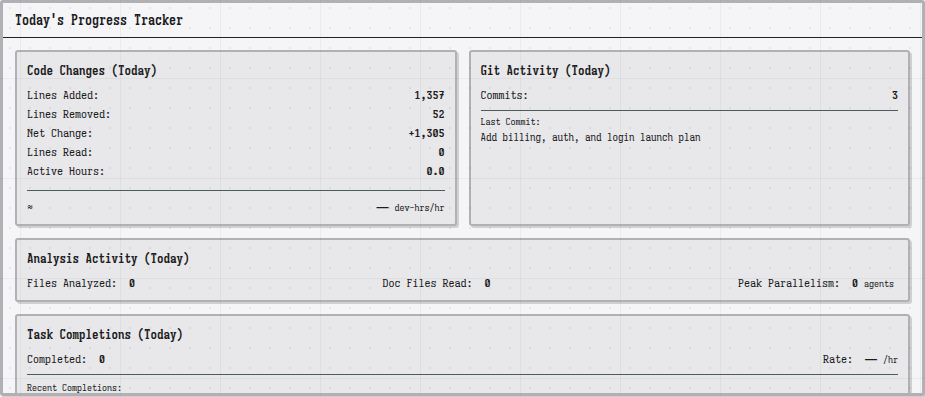
Tracked Metrics
| Metric | Description |
|---|---|
| Lines Added/Removed | Total code changes across all agents today |
| Net Change | Net increase/decrease in codebase size |
| Commits | Number of git commits made today |
| Files Analyzed | Files read by agents for context |
| Peak Parallelism | Maximum agents working simultaneously |
| Task Completions | Tasks successfully completed today |
Parallel Execution
One of Prompter Hawk's core features is the ability to run multiple AI agents simultaneously, dramatically accelerating development.
How It Works
- Shared workspace - All agents work in the same project directory
- No branch merges - Agents commit directly to the main branch
- Automatic coordination - Task dependencies prevent conflicts
- Real-time monitoring - See all agents' progress in one dashboard
Best Practices for Parallel Work
- Divide by domain - Assign frontend, backend, tests to different agents
- Use task dependencies - Mark tasks that must complete before others can start
- Specialize agents - Give agents focused roles with clear boundaries
- Monitor conflicts - Watch for agents modifying the same files
Pro tip: Start with 2-3 agents and gradually increase as you learn how to coordinate them effectively.
Team Captain
The Team Captain is a special agent that monitors your mission and automatically creates and assigns tasks to keep your squad productive.
What Team Captain Does
- Monitors idle agents - Detects when agents have no work
- Creates tentative tasks - Suggests tasks based on project needs
- Assigns work - Distributes tasks to appropriate agents
- Maintains flow - Keeps the mission moving forward
Enabling Team Captain
Toggle Team Captain on/off using the button in the dashboard header. When enabled, a captain agent is added to your mission.
Tentative Tasks: Team Captain creates tasks in "tentative" status. You must approve them before agents can execute them. This keeps you in control while benefiting from AI coordination.
Human Feedback System
Agents can request human testing and validation during task execution. This creates a quality gate without interrupting your flow.
How It Works
- Agent completes work and requests feedback
- Request appears in "Feedback Requests" queue
- You test at your convenience
- Provide structured feedback
- Agent receives response and continues
Feedback Request Properties
- Test Description - What the agent wants you to test
- Game Script - Command to run for testing
- Question - Specific question for feedback
- Response Options - Predefined answers to choose from
- Instructions - How to perform the test
Non-blocking: Feedback requests queue up so you can review them on your schedule. Agents wait patiently without blocking other work.
Live Peek
Live Peek lets you see exactly what your agents are thinking and doing in real-time. Watch their reasoning, tool calls, and decisions as they work.
What You Can See
- Agent Reasoning - The AI's internal thought process as it works through tasks
- Tool Calls - Every file read, write, and command executed
- Model Info - Which AI model is being used for each response
- Message History - Full conversation between you and the agent
Using Live Peek
- Click on any running agent in the dashboard
- The agent panel expands to show real-time activity
- Tool calls stream live as the agent works
- Click on any task to see its full message history
Task Message History
For any task (including completed ones), you can view:
- Full conversation - All messages exchanged during execution
- Tool call details - Expandable sections showing what tools were called
- Prompt sections - Collapsible system prompts and context
- Model information - Which model handled each response
Debugging made easy: When a task fails, use Live Peek to see exactly what the agent was thinking and where things went wrong.
Multi-Provider Support
Prompter Hawk supports multiple AI providers, allowing you to use the best model for each task and optimize costs.
Supported Providers
| Provider | Models | Best For |
|---|---|---|
| Claude (Anthropic) | claude-sonnet-4-20250514, claude-opus-4-20250514, claude-3-5-haiku | Code review, complex reasoning, UI/UX, debugging |
| OpenAI | gpt-4o, gpt-4o-mini, o1, o1-mini | Code generation, documentation, high-volume tasks |
| Google Gemini | gemini-2.5-flash, gemini-2.5-pro, gemini-2.0-flash | Fast iteration, multimodal tasks, cost optimization |
Mixed Backend Strategy
Mix providers in a single mission for optimal results:
- gpt-4o for code generation (best balance of quality and speed)
- claude-sonnet-4 for code review (superior analysis and reasoning)
- gpt-4o-mini for documentation and tests (fast and cost-effective)
- gemini-2.5-flash for high-volume, low-cost tasks
Cost savings: A mixed-backend strategy can reduce costs by 60-80% compared to using premium models for everything.
Settings
Prompter Hawk settings are accessible via the gear icon in the dashboard header.
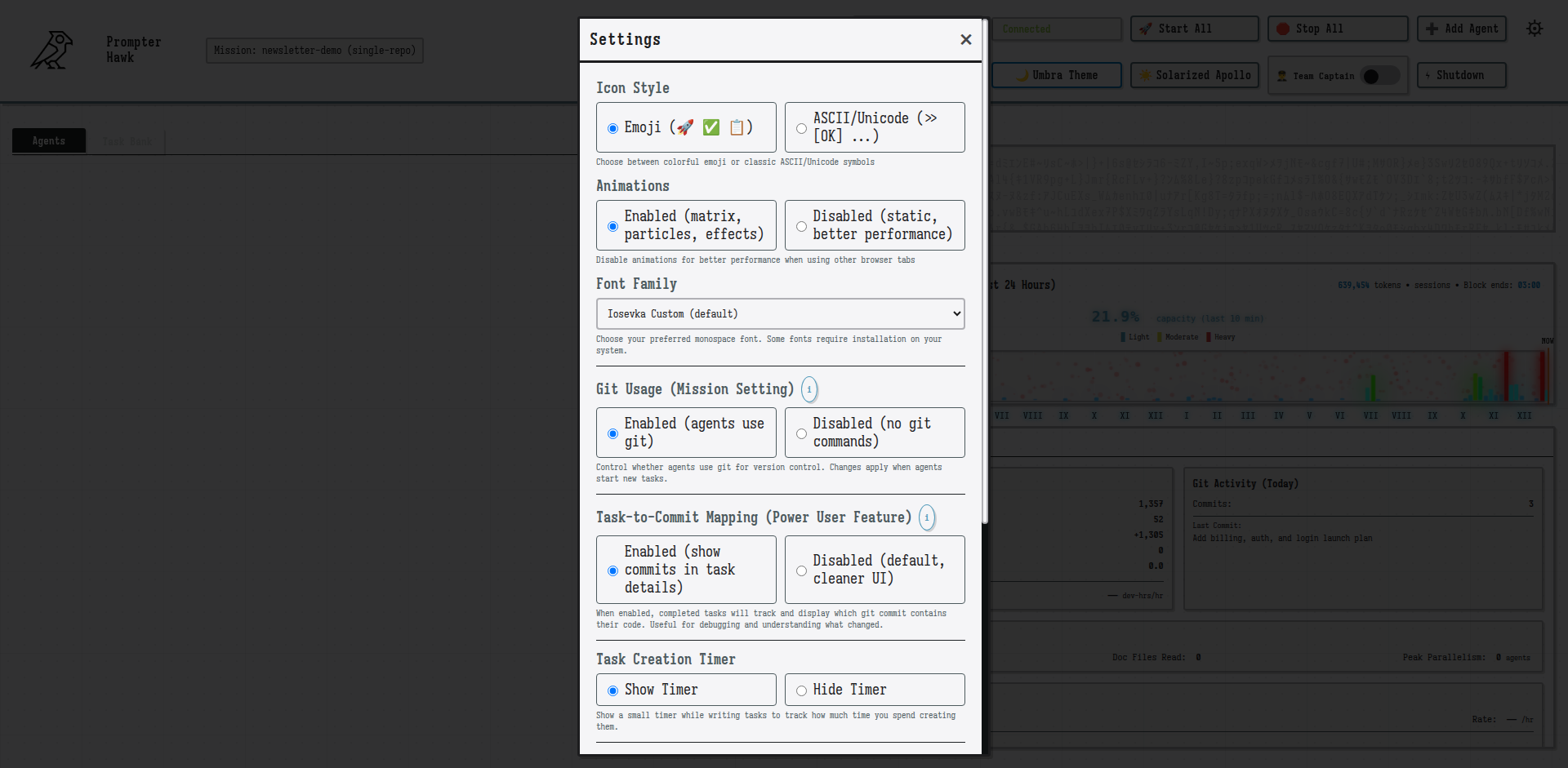
Available Settings
| Setting | Options | Description |
|---|---|---|
| Icon Style | Emoji / ASCII/Unicode | Choose between colorful emojis or classic symbols |
| Animations | Enabled / Disabled | Toggle matrix particles and visual effects |
| Font Family | Various monospace options | Choose your preferred coding font |
| Git Usage | Enabled / Disabled | Control whether agents use git commands |
| Task-to-Commit Mapping | Enabled / Disabled | Link completed tasks to their git commits |
| Task Creation Timer | Show / Hide | Display timer when creating tasks |
Theme Options
Switch between visual themes using the theme buttons in the header:
- Umbra Theme - Dark mode with cyan accents (default)
- Apollo Theme - Warm, amber-toned dark mode
- Solarized Apollo - Light mode with warm tones
Themes apply consistently across all UI elements including dialogs, folder pickers, and mission creation screens.
Animation Effects
The dashboard includes optional visual effects:
- Matrix particles - Ambient background animation
- Perlin noise effects - Smooth, organic background patterns
- Border effects - Animated borders on active elements
Toggle animations in Settings if you prefer a more minimal interface or need better performance.
API Key Setup
Prompter Hawk requires API keys to communicate with AI providers. Here's how to configure them securely.
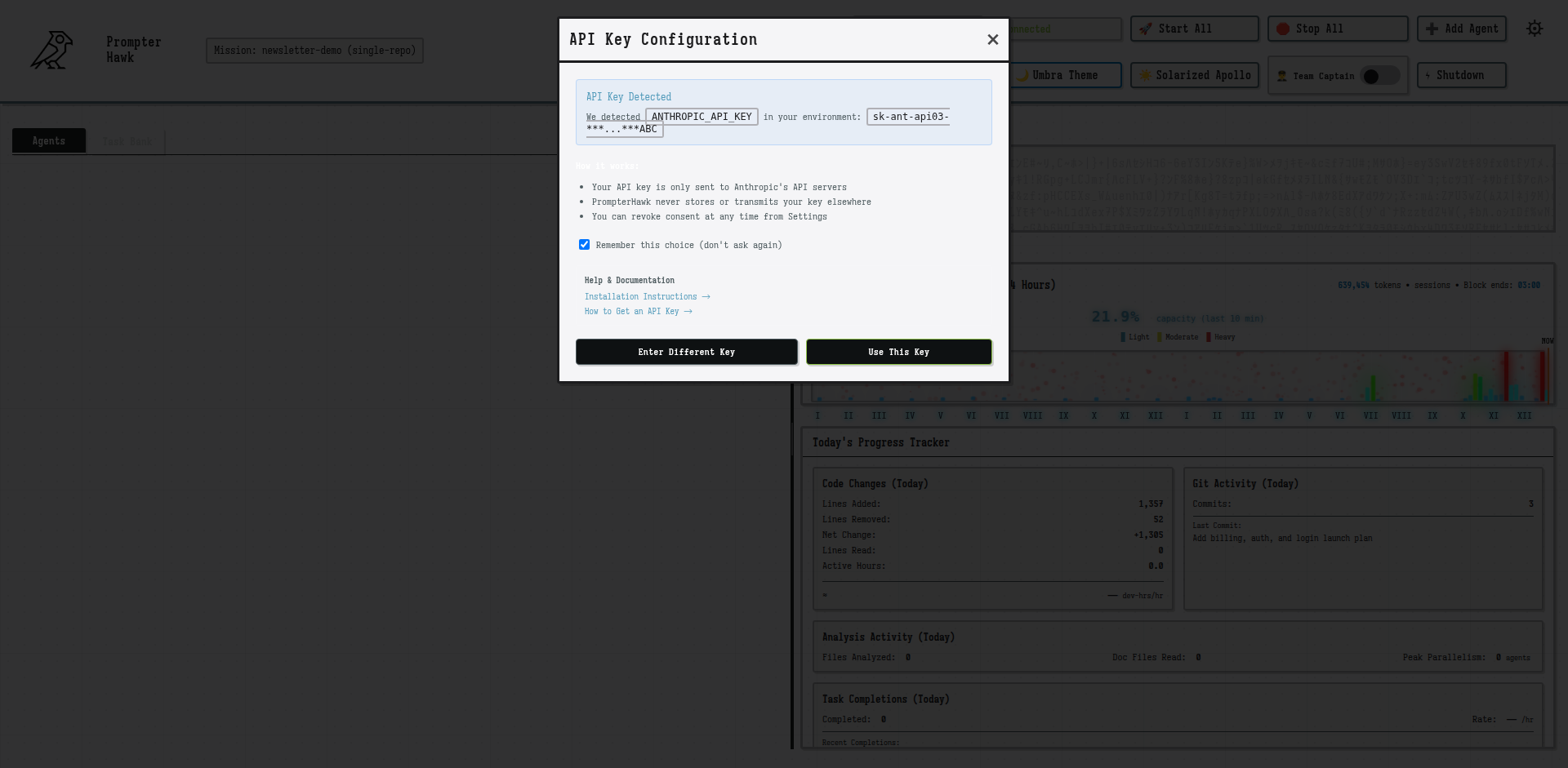
Setting Up API Keys
-
Get your API key from the provider
- Claude: console.anthropic.com/settings/keys
- OpenAI: platform.openai.com/api-keys
- Gemini: aistudio.google.com/app/apikey
-
Open Prompter Hawk Settings
Click the gear icon and navigate to backend configuration. -
Configure your key
Either paste your key directly, or grant consent to use an environment variable.
The Consent System
Prompter Hawk respects your privacy. When it detects an API key in your environment variables:
- It asks for your explicit consent before using it
- Your consent choice is remembered permanently
- Keys are only sent to their respective providers
- You can revoke consent anytime from Settings
Environment variables: Set ANTHROPIC_API_KEY, OPENAI_API_KEY, or GEMINI_API_KEY in your shell profile for persistent configuration.
Storage Locations
- API keys:
~/.prompter-hawk/api_keys.json - Consent records:
~/.prompter-hawk/api_consent.json
Backend Providers
Configure which AI provider each agent uses. You can mix and match for optimal cost and performance.
Installing Backends
# Claude (requires Claude Max subscription OR API key)
pip install claude-code-sdk    # For Claude Max
pip install anthropic          # For API access

# OpenAI
pip install openai

# Gemini
pip install google-genai
Per-Agent Backend Configuration
Each agent can use a different backend. Configure in your mission JSON or via the dashboard UI:
{
  "agents": [
    {
      "id": "coder",
      "role": "Python Developer",
      "backend": {
        "provider": "openai",
        "model": "gpt-4o",
        "budget_limits": {
          "hourly_budget_usd": 2.0,
          "daily_budget_usd": 10.0
        }
      }
    },
    {
      "id": "reviewer",
      "role": "Code Reviewer",
      "backend": {
        "provider": "anthropic",
        "model": "claude-sonnet-4-20250514"
      }
    }
  ]
}
Budget Limits
Prevent runaway costs by setting budget limits per agent:
- hourly_budget_usd - Maximum spend per hour
- daily_budget_usd - Maximum spend per day
- monthly_budget_usd - Maximum spend per month
Tasks automatically fail when budget is exceeded.
Copy-Paste Task Examples
Here are ready-to-use task examples. Copy the description directly into the "Add Task" dialog.
Mission Templates
Use these templates as starting points for common project types.
Web Application (3 Agents)
{
  "mission_name": "my-web-app",
  "agents": [
    {
      "id": "backend-dev",
      "role": "Backend Developer - Focus on API endpoints, database, authentication",
      "backend": { "provider": "openai", "model": "gpt-4o" }
    },
    {
      "id": "frontend-dev",
      "role": "Frontend Developer - Focus on React components, styling, UX",
      "backend": { "provider": "anthropic", "model": "claude-sonnet-4-20250514" }
    },
    {
      "id": "qa-tester",
      "role": "QA Engineer - Write tests, find bugs, ensure quality",
      "backend": { "provider": "openai", "model": "gpt-4o-mini" }
    }
  ]
}
Solo Developer (2 Agents)
{
  "mission_name": "solo-project",
  "agents": [
    {
      "id": "developer",
      "role": "Full-stack developer - Implement features across the stack",
      "backend": { "provider": "anthropic", "model": "claude-sonnet-4-20250514" }
    },
    {
      "id": "reviewer",
      "role": "Code reviewer - Review changes, suggest improvements, catch bugs",
      "backend": { "provider": "openai", "model": "gpt-4o" }
    }
  ]
}
Documentation Team (2 Agents)
{
  "mission_name": "docs-project",
  "agents": [
    {
      "id": "tech-writer",
      "role": "Technical writer - Create user guides, API docs, tutorials",
      "backend": { "provider": "anthropic", "model": "claude-sonnet-4-20250514" }
    },
    {
      "id": "code-analyst",
      "role": "Code analyst - Read codebase, extract patterns, create examples",
      "backend": { "provider": "openai", "model": "gpt-4o-mini" }
    }
  ]
}
CLI Commands
After installing via the DMG (macOS) or .deb package (Linux), you get the global prompter-hawk command.
Quick Commands (Recommended)
These commands auto-detect your mission from the current directory:
# Start mission in current directory
prompter-hawk

# Initialize new mission
prompter-hawk init

# Show mission status summary
prompter-hawk status

# Get help
prompter-hawk help
Task Management
Create and manage tasks from the command line:
# Create task assigned to specific agent
prompter-hawk task @frontend-dev "fix button alignment"

# Create task with description and priority
prompter-hawk task @qa-tester "test login flow" -d "Verify all auth paths work" -p high

# Create unassigned task (auto-assigned when agent available)
prompter-hawk task "update docs" -d "Add API reference" -c documentation

# List all tasks
prompter-hawk tasks

# List tasks by status
prompter-hawk tasks pending
prompter-hawk tasks completed

# List tasks by agent
prompter-hawk tasks @frontend-dev
Task Options
| Option | Description |
|---|---|
-d, --description |
Task description (detailed instructions for the agent) |
-p, --priority |
Priority: critical, high, medium (default), low |
-c, --category |
Category: feature (default), bugfix, documentation |
-a, --assign |
Assign to agent (alternative to @agent syntax) |
Directory detection: The prompter-hawk command looks for .prompter-hawk/ in your current directory and auto-uses that mission. Just cd to your project and run commands - no need to specify mission names.
Troubleshooting
Common Issues
"No backends available"
Install at least one AI provider package and configure an API key. See API Key Setup.
"Invalid API key format"
Double-check you copied the entire key. Claude keys start with sk-ant-, OpenAI keys start with sk- or sk-proj-.
"Port 8000 already in use"
Another process is using port 8000. Either stop it, or check the logs for which port Prompter Hawk chose instead (8001-8100).
Agent stuck in "busy" state
The agent may be waiting for a response. Check the agent's logs in the dashboard. If truly stuck, restart the agent service.
Tasks not being picked up
Ensure agents are started (not just added). Check if tasks have prerequisites that aren't completed yet.
Getting Help
- Check the
runtime/logs/directory for detailed error logs - Review
.prompter-hawk/task_state.jsonfor task status - Enable debug mode:
export DEBUG_SERVICES=true
Frequently Asked Questions
Do I need all three AI providers?
No! You only need at least one. Most users start with just Claude or OpenAI and add more as needed.
How much does it cost to use?
Prompter Hawk has a free tier for getting started, plus a paid plan at $24/month for unlimited agents and missions. You also pay for AI provider usage (Claude, OpenAI, etc.) based on their pricing. Use budget limits to control costs.
Can agents modify any file?
Agents are configured with boundaries and territories. By default, they can only modify files within your mission workspace. System files are protected.
What happens if an agent makes a mistake?
Use git to revert changes. Agents commit frequently with descriptive messages, making it easy to undo specific changes. The one-click retry feature lets you re-run tasks with context preserved.
Can I use Prompter Hawk offline?
No, all AI backends require internet connectivity. Future versions may support local models.
How do I upgrade?
For the Linux .deb package or macOS DMG, download and install the latest version from our Downloads page. The new version will replace the old one.
Is my code sent to AI providers?
Yes, the code context needed for tasks is sent to whichever AI provider each agent uses. Review each provider's data handling policies.